Front end search
This documentation applies to version 2.X of the plugin.The search is designed to make it easier for your potential clients to find the calendar with the availability period they want.
After you add all the calendars you want to include in the search and you configure the settings you can see the result in the front end.
The search will automatically adapt to fit the space you make available for it.
By default, all the calendars are displayed. The thumbnail is the featured photo from the page that contains the calendar. The description is a small part of the text you have written in the page where you have the calendar.
Search List
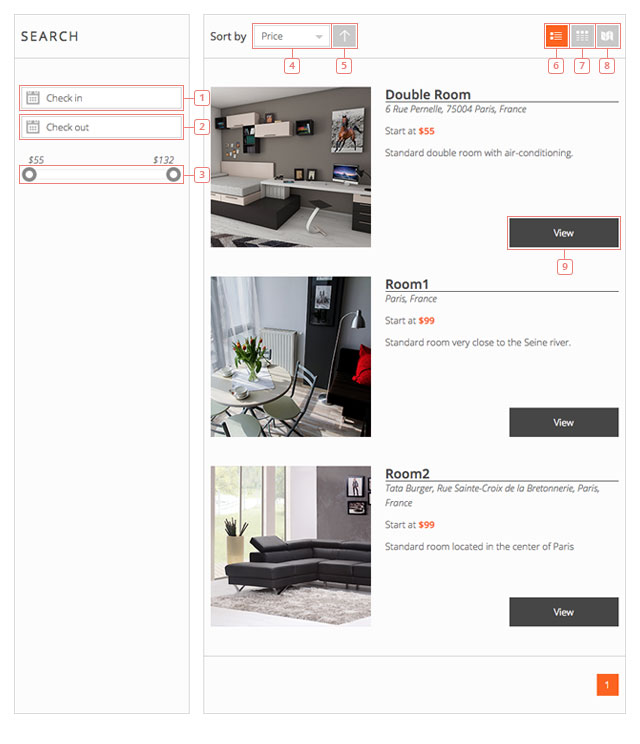
Item 1A calendar datepicker will be displayed when you click. Here you select the Check-in date for the period you want to search availability for.Item 2Click to select the Check-out date for the period you want to search availability for.Item 3Price range slider. Move the handle to change the minimum and the maximum price that you want to search for.Item 4Click to select a different sorting method. You can choose between Price and Name.Button 5Click to change the sorting from ascending to descending.Button 6List view of the search results.Button 7Grid view of the search results.Button 8Map view of the search results.Button 9Clicking on any calendar from the search results will send you to that calendar page. If you made a selection in the sidebar (check-in & check-out), the calendar will have those dates selected when you go to that page from the search results.
Search grid
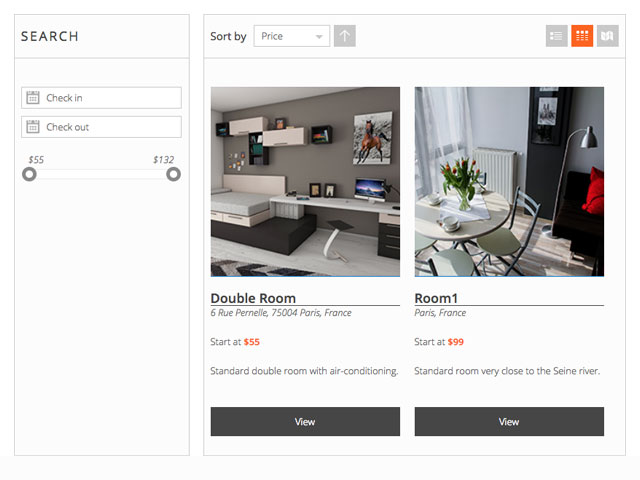
The grid view has the search result displayed one next to another. It works exactly like the list view.
Search map
The Map view will display the location of each one of the search results. If you don't add a location to your calendar it will not show on the map.
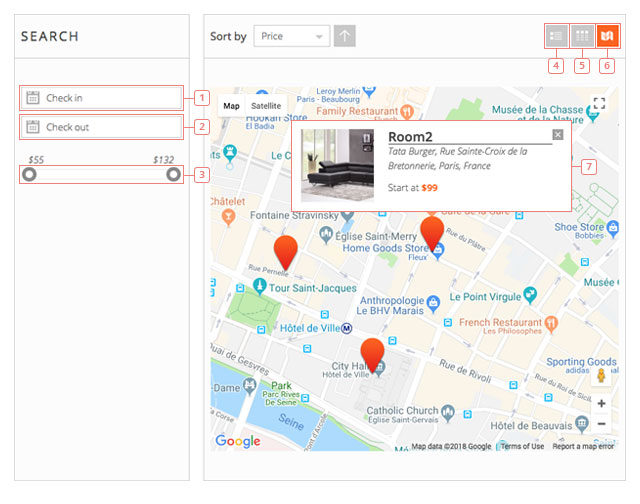
Item 1A calendar datepicker will be displayed when you click. Here you select the Check-in date for the period you want to search availability for.Item 2Click to select the Check-out date for the period you want to search availability for.Item 3Price range slider. Move the handle to change the minimum and the maximum price that you want to search for.Button 4Click to switch to the list view of the search results.Button 5Click to switch to the grid view of the search results.Button 6The map view of the search results (you are here).Item 7Click a marker on the map to see details about that location. Clicking again on the details of the calendar it will redirect you to that calendar page.
Each one of the 3 Views (list,grid,map) can be the default view of the search results.
Search hours
If you enable searching for hours, the search will have an hour selection option in the front end.
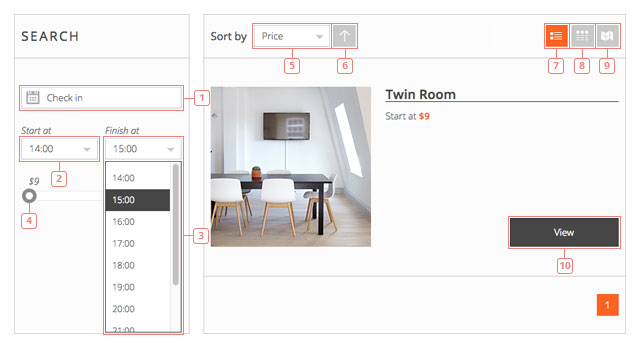
Item 1Click to select the day you are looking for.Item 2Click to display the dropdown with the possible hours and to select the starting hour. These hours can be changed in the back-end settings.Item 3Click to select the end hour.Item 4Price range slider. Move the handle to change the minimum and the maximum price that you want to search for.Item 5Click to select a different sorting method. You can choose between Price and Name.Button 6Click to change the sorting from ascending to descending.Button 7List view of the search results.Button 8Grid view of the search results.Button 9Map view of the search results.Button 10Click to select the calendar and to be redirected to that calendar's page.