Administration - Discounts
Path / Administration areaDiscounts This documentation applies to version 2.X of the plugin.Set discount values when a client is booking a specific number of days/hours.
You need to select the discounts you want to use in calendar settings. Same discounts can be used in an unlimited number of calendars.
Add a discount
Step 1Click the "plus" button to add a new discount.
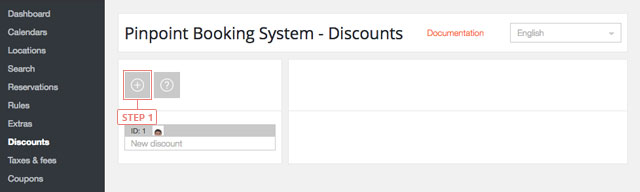
After you clicked the button, the discount will appear in the list below.
Set a discount
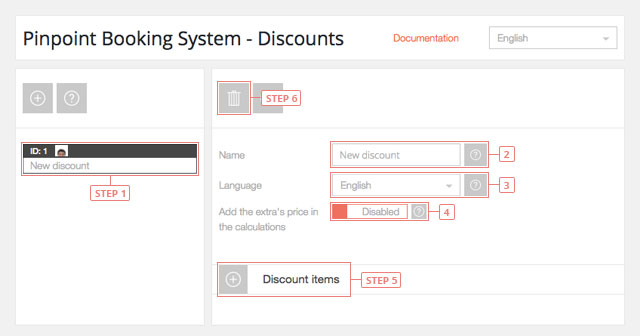
Step 1 Select the discount from the list to display the information.Field 2Change nameField 3Change to the language you want to edit the discount.Field 4Add the extras price in the calculations - disabled by defaultButton 5Add discount itemButton 6Delete discount
Set a discount item
A discount item contains the data for a booked time lapse.
The order of the items gives usage priority. The last item has a higher priority.
Button 1Toggle item settingsButton 2Delete itemButton 3Sort item
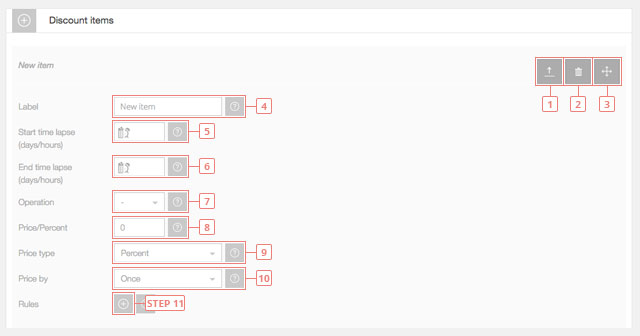
Field 4Enter item label (will be seen by clients).Field 5Enter the number of days/hours for the beginning of the time lapse. Leave it blank for it to start from 1 day/hour. If you apply it to a calendar that uses day it will mean days, if you use hours in your calendar it will mean hours.Field 6Enter the number of days/hours for the end of the time lapse. Leave it blank to be unlimited.Field 7Select item price operation. You can add or subtract a value.Field 8Enter item price.Field 9Select item price type. It can be a fixed value or a percent from price.Field 10Select item price by. The price can be calculated once or by day/hour.Button 11Add discount item rule.
Set a discount item rule
A discount item rule sets the discounts for a specific time period.
The order of the rules gives usage priority. The last rule has a higher priority. A rule will also overwrite item data.
Button 1Delete rule.Button 2Sort rule.
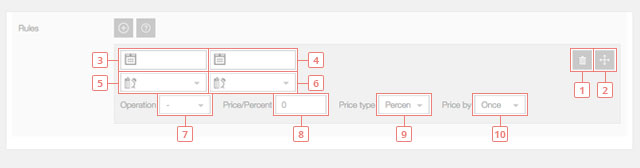
Field 3Enter the rule start date, when the discount item rule will start being used. Leave it blank to start from today.Field 4Enter rule end date, when the discount item rule will stop being used. Leave blank if you do not want to have an end date.Field 5Enter rule start hour, when the discount item rule will start being used. Leave it blank so that the rule will begin from the start of the day.Field 6Enter rule end hour, when the discount item rule will end being used. Leave it blank, so that the rule will expire at end of the day.Field 7Select rule price operation. You can add or subtract a value.Field 8Enter rule priceField 9Select rule price type. It can be a fixed value or a percent from price.Field 10Select rule price by. The price can be calculated once or by day/hour.