Administration - Forms
Path / Administration areaForms This documentation applies to version 2.X of the plugin.Set up forms for your clients to fill when submitting a booking request.
Add a form
Step 1Create a new form.Step 2Select the form you want to edit.Field 3Change the name of the form.Field 4Change to the languages you want to edit the form.
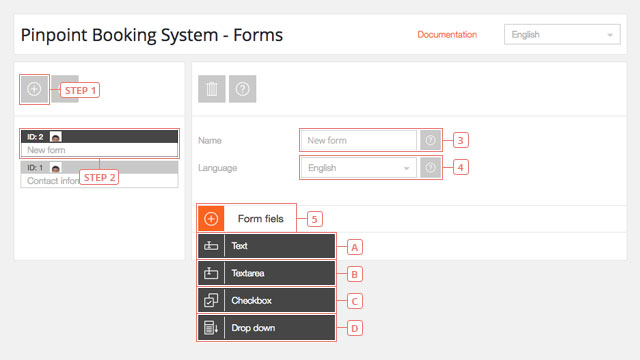
Button 5Add a new form field and select the type of form field you want: Text Textarea Checkbox Dropdown
Edit form fields
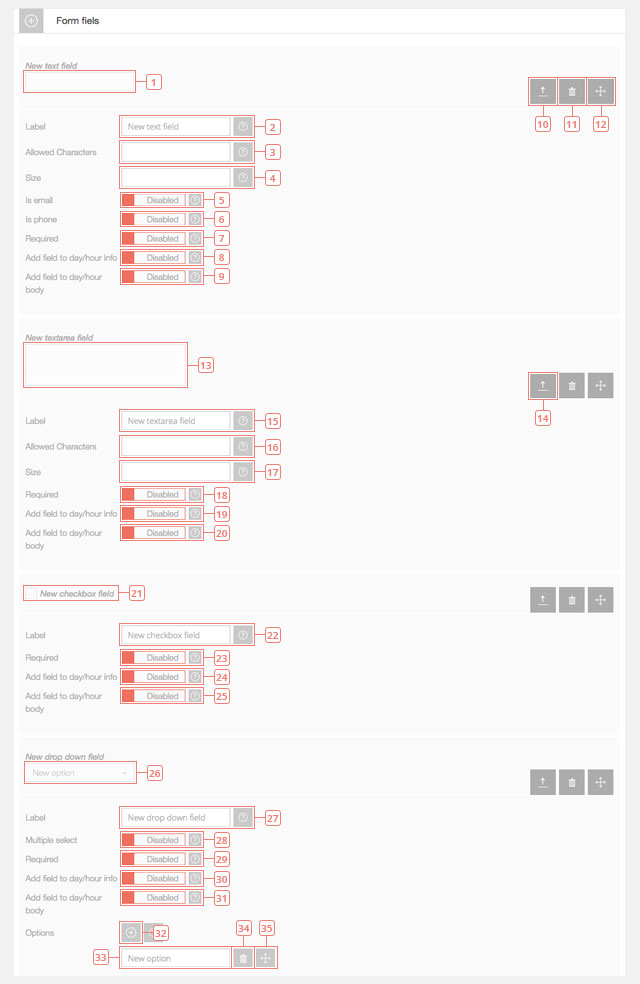
Item 1An example of a new Text form field. Only Text form fields can be used for emails or phones.Field 2Edit the Label. This will be visible to your clients.Field 3Set the allowed characters. Leave it blank if all characters are allowed.Field 4Set the number of characters allowed.Field 5Enable if the text field is an email address.Field 6Enable if the text field is a phone number.Field 7Enable if the text field is required. A required field will not allow your client to send a booking request without entering data in it.Field 8Enable to show the information submitted in the front-end calendar in the info box of the day/hour.Field 9Enable to show the information submitted in the body of the day/hour in the front-end calendar.Button 10Click to hide the settings for this form field.Button 11Click to delete this text field.Button 12Click to move this text field before or after another form field you create.Item 13An example for a new Textarea.Button 14Click to expand the settings for this form field.Field 15Edit the Label. This will be visible to your clients.Field 16Set the allowed characters. Leave it blank if all characters are allowed.Field 17Set the number of characters allowed.Field 18Enable if the text field is required. A required field will not allow your client to send a booking request without entering data in it.Field 19Enable to show the information submitted in the front-end calendar in the info box of the day/hour.Field 20Enable to show the information submitted in the body of the day/hour in the front-end calendar.Item 21An example for a new checkbox field.Field 22Edit the Label. This will be visible to your clients.Field 23Enable if the text field is required. A required field will not allow your client to send a booking request without entering data in it.Field 24Enable to show the information submitted in the front-end calendar in the info box of the day/hour.Field 25Enable to show the information submitted in the body of the day/hour in the front-end calendar.Item 26An example for a new dropdown field.Field 27Edit the Label. This will be visible to your clients.Field 28Enable if you want your clients to select more than one option from the dropdown field.Field 29Enable if the text field is required. A required field will not allow your client to send a booking request without entering data in it.Field 30Enable to show the information submitted in the front-end calendar in the info box of the day/hour.Field 31Enable to show the information submitted in the body of the day/hour in the front-end calendar.Button 32Click to add a new option to the dropdown field.Field 33Edit the option name.Button 34Click to delete the option.Button 35Click and drag to change the order of the options in the dropdown field.