Administration - Reservations
Path / Administration areaReservations This documentation applies to version 2.X of the plugin.Here you can manage your reservations. You can approve, reject and cancel booking requests and you can export existing reservations.
Reservations page details
Field 1Select the calendar you want to display the reservations from (or show all).Button 2Select to show the list of the calendars.Button 3Click to view the reservations in a calendar view.Button 4Click to add a new reservation for the selected calendar.Field 5Show only reservations starting with this day.Field 6Show only reservations until this day.Field 7Show only reservations starting with this hour.Field 8Show only reservations until this hour.Items 9Filter reservations that have the status pending, approved, rejected, canceled or expired.Items 10Filter reservations that have one of the selected payment methods.Field 11Search for a reservation that contains certain words.Field 12Select the page of the Reservations list.Field 13Select how many reservations you want to display on a page ( you can choose from 25,50, 75 or 100).Field 14Order the reservations Ascending or Descending.Field 15Order the reservations by Check in dates or Check out dates.
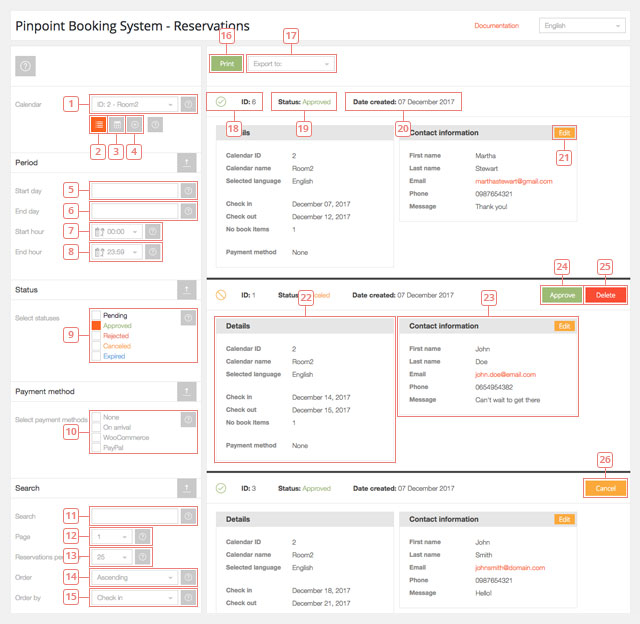
Button 16Click to print the page.Field 17Select one of the exporting options available (iCal-ics, Excel, CSV, JSON).Item 18The reservation ID.Item 19The status of the reservation.Item 20The date when the reservation was created.Button 21Click to edit the Contact information part of the reservation.Item 22The details of the reservation.Item 23The form completed by the client (contact information).Button 24Click to approve a pending reservation or a reservation previously canceled.Button 25Click to delete a reservation. If a reservation has the status "pending", it needs to be rejected before it can be deleted.Button 26Click to cancel a currently active reservation. It will gain the status "canceled" and it can be deleted.
Calendar view of the reservations
Clicking on Item 3 you can go to a calendar view of your reservations.
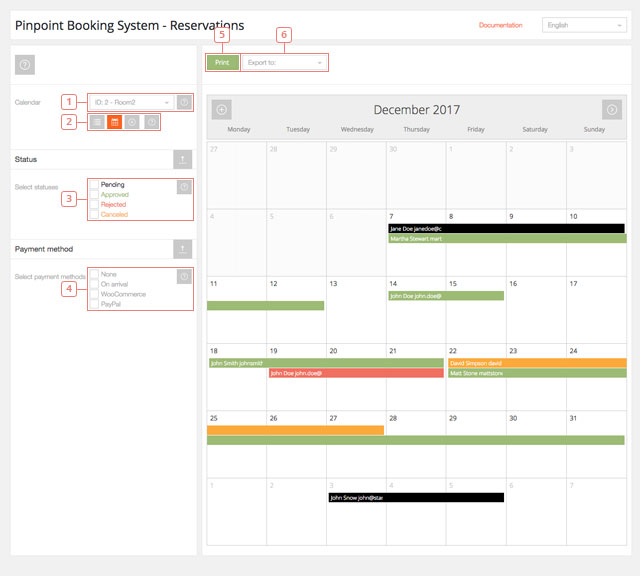
Field 1Select the calendar you want to display the reservations from(can't show all).Items 2Click to switch between the list view, calendar view and adding a new reservationItems 3Filter reservations that have the status pending, approved, rejected, canceled or expired.Items 4Filter reservations that have one of the selected payment methods.Button 5Click to print the page.Field 6Select one of the exporting options available (iCal-ics, Excel, CSV, JSON).
The reservation colors are:
green = approved reservation;
yellow = canceled reservation;
red = rejected reservation;
black = pending reservation.
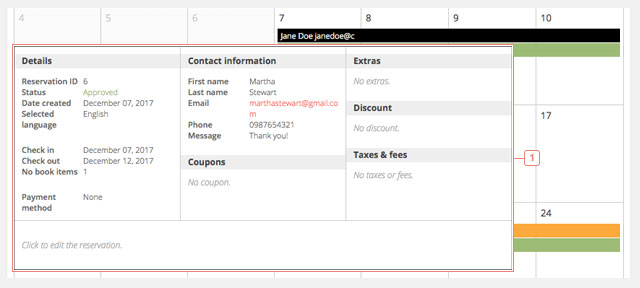
Item 1Hovering a reservation will show the reservation details. Clicking on a reservation will lock the details on your screen and you will be able to cancel or approve the reservation. To go back to the calendar you need to click Close.
Adding a new reservation
If you click on Item 4, a calendar will be displayed and you can add a new reservation.
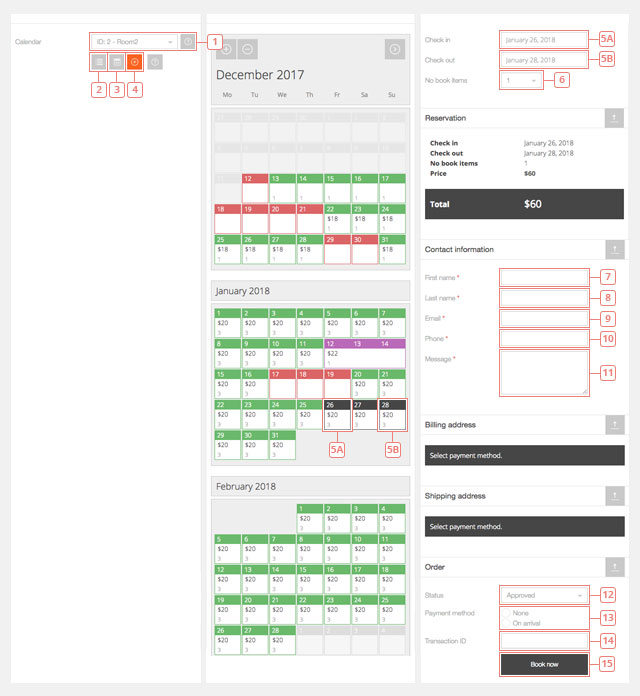
Field 1Select the calendar.Button 2Click to switch to the list view of your existing reservations.Button 3Click to switch to the calendar view of your existing reservations.Button 4Click to add a new reservation (you are here).Field 5Select the days of the reservation.Field 6Select the number of booked items.Field 7Text input field.Field 8Text input field.Field 9Email input field.Field 10Phone input field (accepts only numbers).Field 11Text input field.Field 12Dropdown field where you can chose the status of the reservation you add ( approved or pending)Field 13Click on the available options to select the payment method.Field 14Add a Transaction ID if it's the case.Button 15Click to add the reservation to the selected calendar.
How to export reservations
You can export your reservations from the list view page of the reservations. After you select the calendar ( or all the calendars) and you filter the reservations by period,status or payment method, you can export the reservations that are displayed on the page.
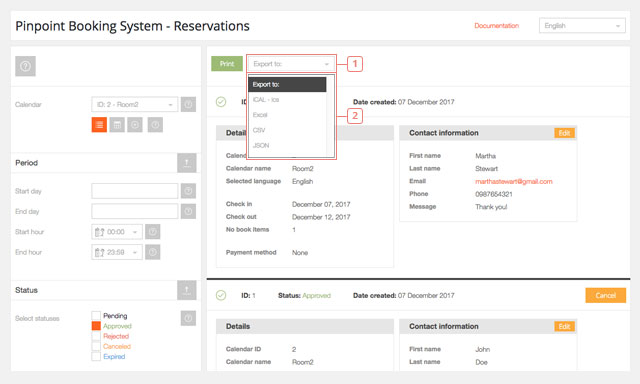
Field 1Click to see the available options to export.Items 2Click on ICAL, Excel, CSV or JSON to export your reservations in that format
A file will be downloaded.
Reservations can only be exported. There is no current feature to export expired reservation or to import reservations in one of your calendars.