The calendar
This documentation applies to version 2.X of the plugin.The idea behind the front end booking calendar is that your clients send a booking request with just a few clicks. They can view the availability, select the reservation period, add services, coupons and add their contact details without changing the page.
Calendar description
Availability view
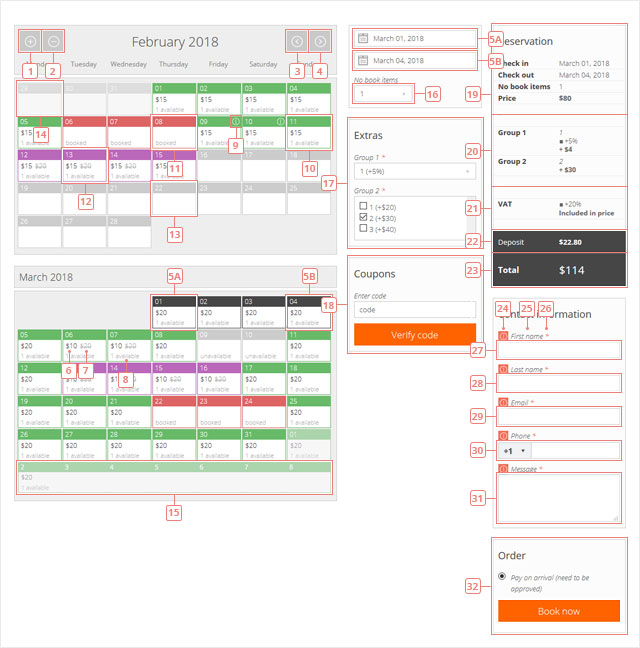
Button 1Click to add an extra month when you view the availability in the calendar.Button 2Click to remove the last month from the booking calendar view.Button 3Click to display previous month(s)Button 4Click to display next month(s).Item 5ASelected the start date of your reservation. The reservation period can be selected directly in calendar view or the sidebar.Item 5BSelect the end date of your reservation. The reservation period can be selected from the calendar view or the sidebar.Item 6Price or promotional price details, with currency. The currency can be changed and it can be displayed in the front or after the value.Item 7Old price info. It is displayed only when a promotional price is created.Item 8Information about the number of available items in that day, or day status (available, booked, special, unavailable).Item 9Information about the day, which was filled in by the administrator.Item 10Day with available status. Color can be changed in template CSS file.Item 11Day with booked status. Color can be changed in template CSS file.Item 12Day with special status. Color can be changed in template CSS file.Item 13Day with unavailable status. Color can be changed in template CSS file.Item 14Previous month day(s), or day(s) that have passed. To properly separate this day(s), we reduced the opacity.Item 15Next month day(s). To properly separate this day(s), we reduced the opacity.
Calendar sidebar
Items 5A & 5BThe selected period for which you want to make a reservation. If you do not want to view availability, directly select the dates and booking system will inform you if the days are available and can be booked, or not.Item 16Select the number of items to book.
Extras form
Item 17Select extras & services you want to add to your reservation.
Coupons form
Item 18Enter your voucher code, validate it and then apply it, if you want to use it with your reservation.
Reservation details
Item 19Main reservation details are displayed here, as start date (hour), end date (hour), number of booked items and price.Item 20A list of extras & services you want to add to your booking request and how they influence your main reservation price.Item 21A list of taxes & fees that are applied to your booking request and how they influence your main reservation price.Item 22If a deposit is requested to make a booking, the value of that deposit is displayed here.Item 23Total cost for the reservation.
Client form
Item 24Error message - if the field is mandatory and has not been completed.Item 25Form field label.Item 26Indicate that the field is mandatory.Item 27Text input field.Item 28Text input field.Item 29Email input field, always mandatory.Item 30Phone input field. Accepts only numbers.Item 31Textarea input field.
Order form
Item 32Select the payment option and press the Book now button to finalize the reservation.