Administration - Coupons
Path / Administration areaCoupons This documentation applies to version 2.X of the plugin.Set up coupons/vouchers for clients to use when they make a booking.
You need to select the coupon you want to use in calendar settings. Same coupon can be used in an unlimited number of calendars. Multiple coupons can be added to the same calendar.
Add a coupon
Step 1Click the "plus" button to add a new coupon.
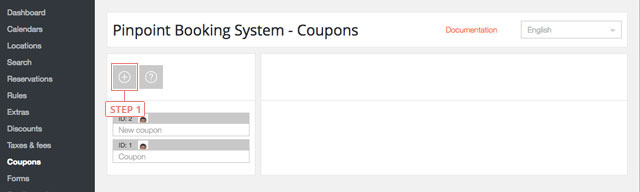
After you clicked the button, the coupon will appear in the list below.
Set coupon data
Step 1Select the coupon from the list to display the information.
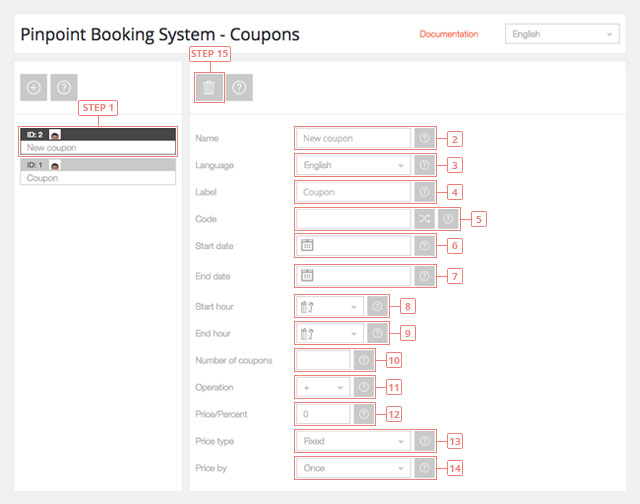
Field 2Change coupon name.Field 3Switch to the language you want to edit the coupon in.Field 4Enter coupon label. It will be visible to your clients.Field 5Enter coupon code. You have the possibility to generate a random code.Field 6Enter coupon start date, when the coupon will start being used. Leave it blank to start from today.Field 7Enter coupon end date, when the coupon will become invalid. Leave it blank the coupons have an unlimited time lapse.Field 8Enter coupon start hour, when the coupon will start being used. Leave it blank so you can use the coupons from the start of the day.Field 9Enter coupon end hour, when the coupon will stop being used. Leave it blank so you can use the coupons until the end of the day.Field 10Enter the number of coupons available. Leave it blank for an unlimited number of coupons.Field 11Select coupon price operation. You can add or subtract a value.Field 12Enter coupon price.Field 13Select coupon price type. It can be a fixed value or a percent from price.Field 14Select how to apply the coupon. The price can be calculated once or by day/hour.Button 15Delete coupon.