Administration - Settings
Path / Administration areaSettings This documentation applies to version 2.X of the plugin.General settings
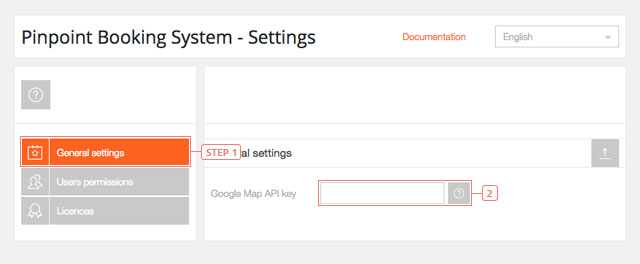
Step 1Select General settingsField 2Enter your Google map API key
Users permissions
Step 1Users permissions. Click to manage the permissions to use the plugin.Item 2Set users permissions to use the booking system. Here you can manage the permissions for each type of user on your website.Item 3Default value : not checked. Click each one of the options to give rights to different users to use the Booking System.Item 4Set users permissions to use custom posts. Here you can manage the permissions to create custom posts for each type of user on your website.Item 5Default value: checked. By default, all your users have the permission to create Pinpoint Posts. Disable if you want to revoke this permission.Item 6Set permissions on individual users. Here you can manage the individual permissions for each user.Field 7Filter users by role.Field 8Set the sorting option for the list of users.Field 9Select how to order the users ( you can order them by ID, email or username).Field 10A search box where you can manually write the name of the user.Field 11Click to give an admin rights to view all the calendars and the reservations.
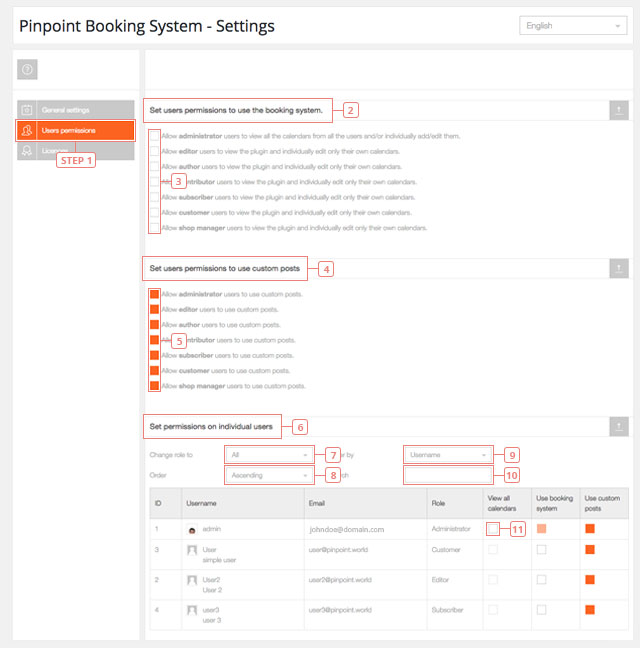
All users have the right to use custom posts. Only Admins can have the right to view all the calendars.
Licences
A list of all the licences active on your website. Add-ons licences are also listed here.
Step 1Click on the Licences to display the licence settings.Field 2Add the valid licence key that you have in your account %s.Field 3Add the email address linked to your %sPINPOINT.WORLD account%s.Button 4Click to activate the licence. A successful message will be displayed if the licence will activate.
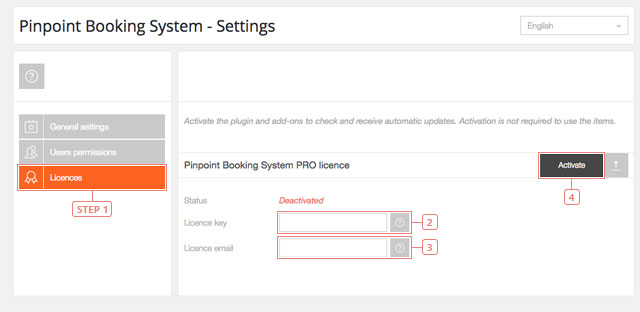
Activation of the licence is not required for the plugin to work but it's required to receive updates.