Administration - Extras
Path / Administration areaExtras This documentation applies to version 2.X of the plugin.Set extras & services that can be added to booking requests. It can be used to create any kind of amenity, service, etc. which you want to add to a booking request, with price or not.
You need to select the extras & services you want to use in calendar settings. Same extras & services can be used in an unlimited number of calendars.
By default, an extras called People is created, which manages the number of adults and children in a reservation.
Add extras & services
Step 1Click the "plus" button to add new extras & services
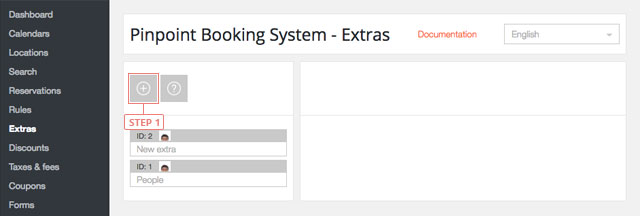
After you clicked the button, the extras will appear in the list below.
Set extras & services data
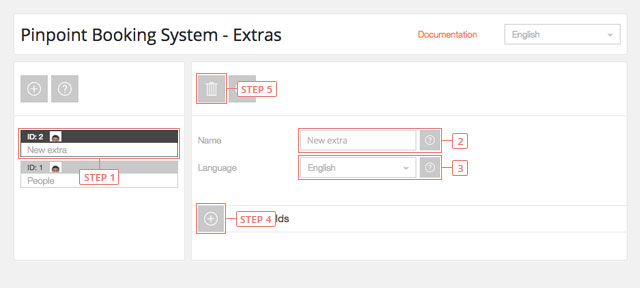
Step 1Click the extras button in the list to display the settings of the extras.Field 2Change extras & services name.Field 3Select the language for extras & services.Button 4Click the plus button to add a new extras group.Button 5Delete current extras data.
Set extras fields
Button 1Click to Hide the Settings.Button 2Click to Delete the Extras field.Button 3Click and drag to Sort the Extras fields.
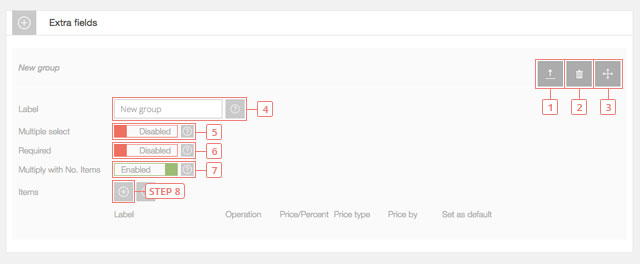
Field 4Change the name of the Extras group.Field 5Disabled is the default value. Enable it if you want to select multiple options from the Extras group.Field 6Disabled is the default value. Enable it if you want to be mandatory a selection from this Extras group.Field 7Enabled is the default value. Disable if you don not want to multiply the Extras to be multiplied with the number of booked items in the front-end calendar.Button 8Click the button to add an item to your Extras group.
Set new item
Field 1Change the label for the new Item.Field 2Select the type of operation you want to apply.Field 3Set the price for the Item.Field 4Select the type of price: Fixed or Percent.Field 5Select how to apply the price: Once or Per day/hour.Field 6Set as default
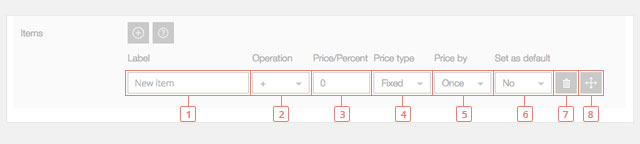
Button 7Delete the item.Button 8Click and drag to sort the extras items
Important information: The selection from the Extras section does not subtract availability from the total number available of a day/hour selection.